Task Management
The Task Board is the central hub for managing work in MosBot OS. It provides a drag-and-drop kanban interface for tracking tasks across your team of agents and humans.
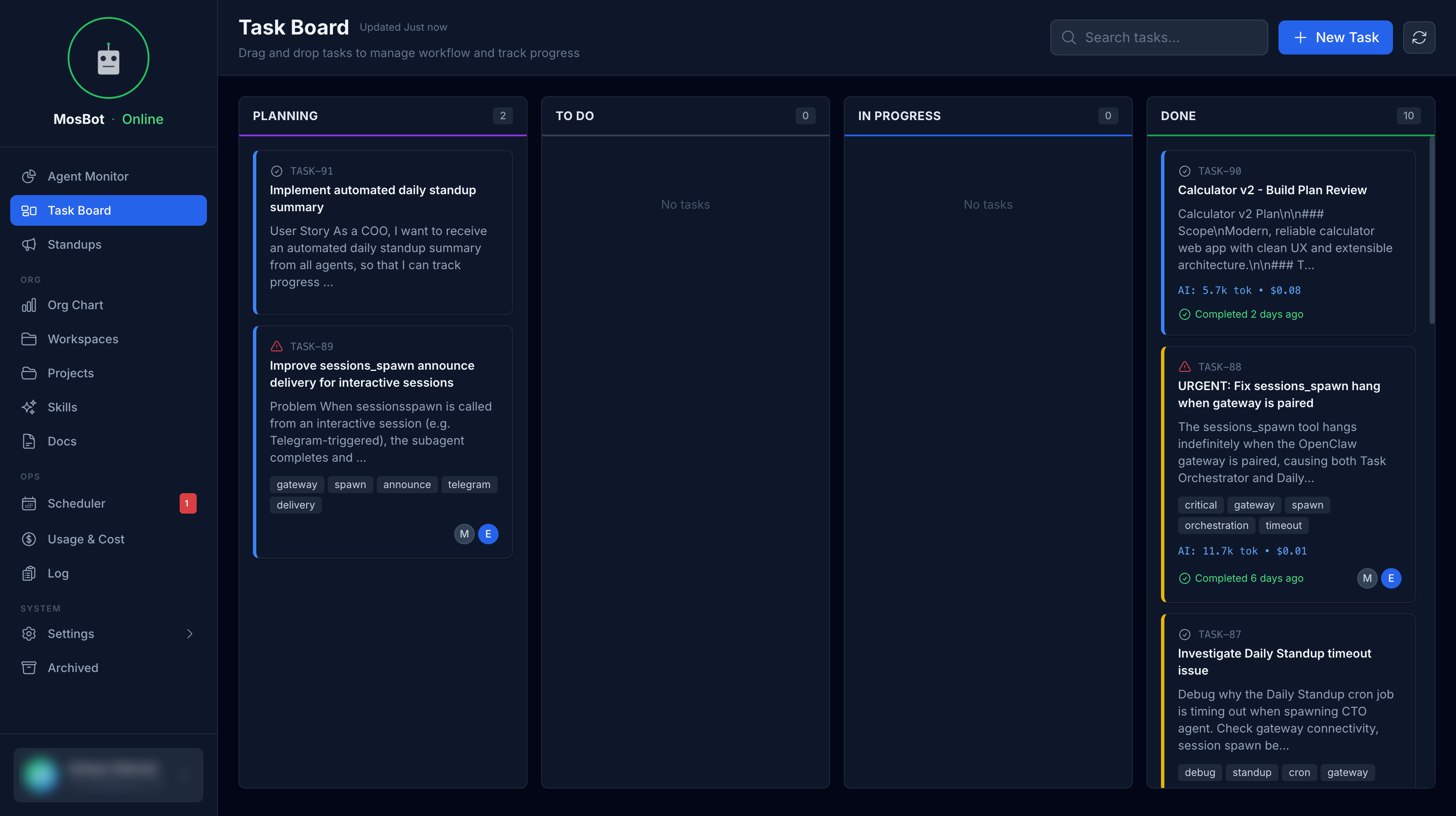
The kanban board
Tasks flow through four columns:
| Column | Description |
|---|---|
| Planning | Ideas and work being scoped |
| To Do | Ready to be worked on |
| In Progress | Actively being worked on |
| Done | Completed work |
Drag a task card to move it between columns — this updates the task's status immediately.
Creating tasks
Click the + button in any column to create a new task. You can also use the New Task button in the header.
When creating a task, you can set:
- Title — what the task is
- Description — details, context, and acceptance criteria
- Priority — Low, Medium, High, or Urgent
- Assignee — assign to an agent or team member
- Tags — categorize tasks for filtering
- Due date — optional deadline
Task detail
Click any task card to open the task detail modal.
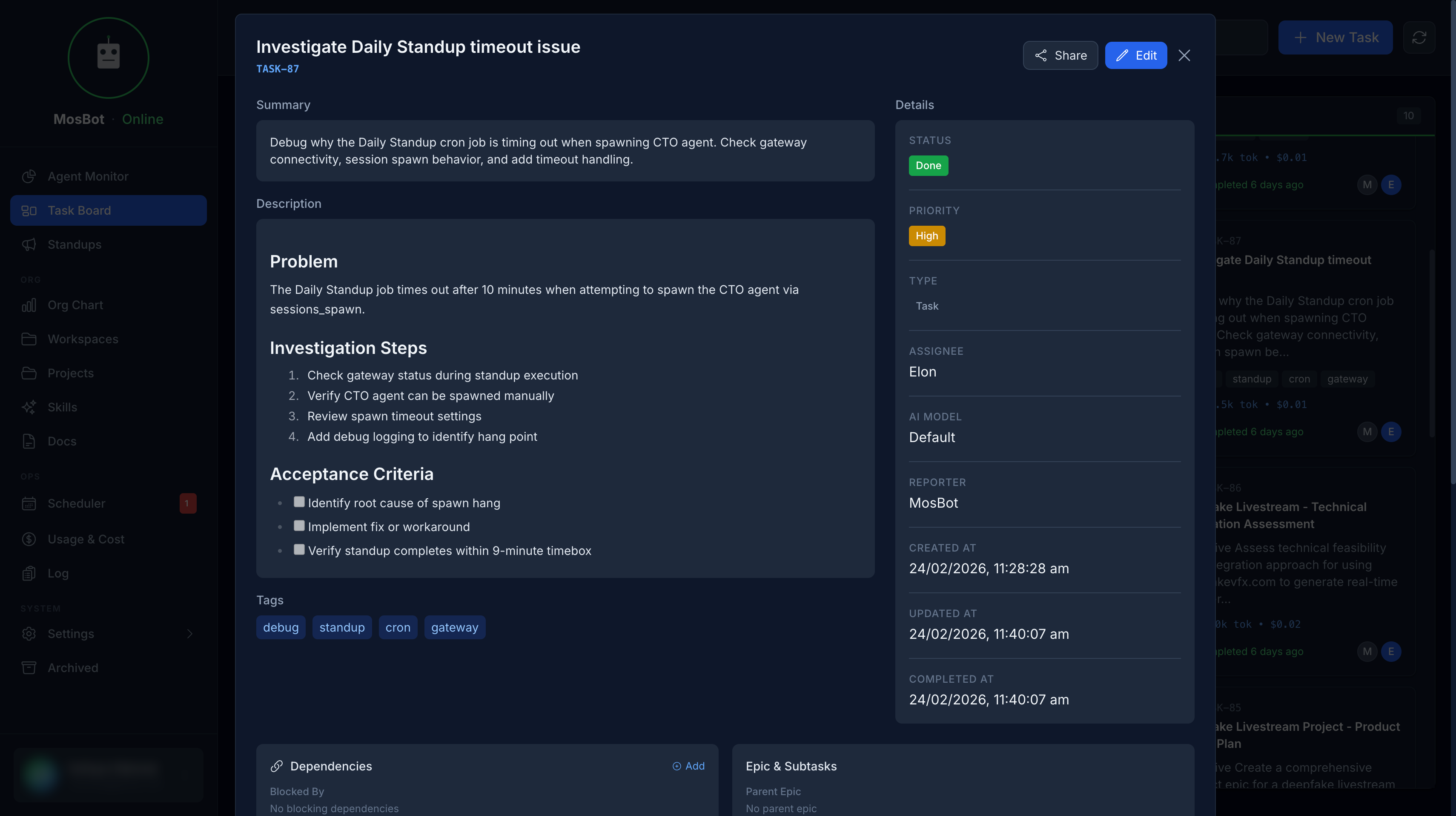
From here you can:
- Edit all task fields
- Add comments
- View activity history
- Set dependencies (this task blocks / is blocked by other tasks)
- Move the task to a different status
Filtering and search
Use the search bar and filter controls at the top of the board to find tasks:
- Search — filter by title or description text
- Assignee — show tasks for a specific person or agent
- Priority — filter by priority level
- Tags — filter by tag
Archived tasks
Completed tasks are automatically archived after 7 days (configurable via ARCHIVE_AFTER_DAYS in
.env). Archived tasks are accessible from the Archived page in the sidebar.
Working with agents
Agents can create, update, and move tasks via the MosBot API. This means your AI agents can:
- Create tasks when they identify work that needs to be done
- Update task status as they make progress
- Add comments with their findings or outputs
- Mark tasks as done when complete
This creates a shared task board where human and agent work is visible in one place.