Workspaces
The Workspaces feature lets you browse, view, and edit the files in your agents' workspaces directly from the MosBot Dashboard.
Service to be configured. See OpenClaw Integration. :::
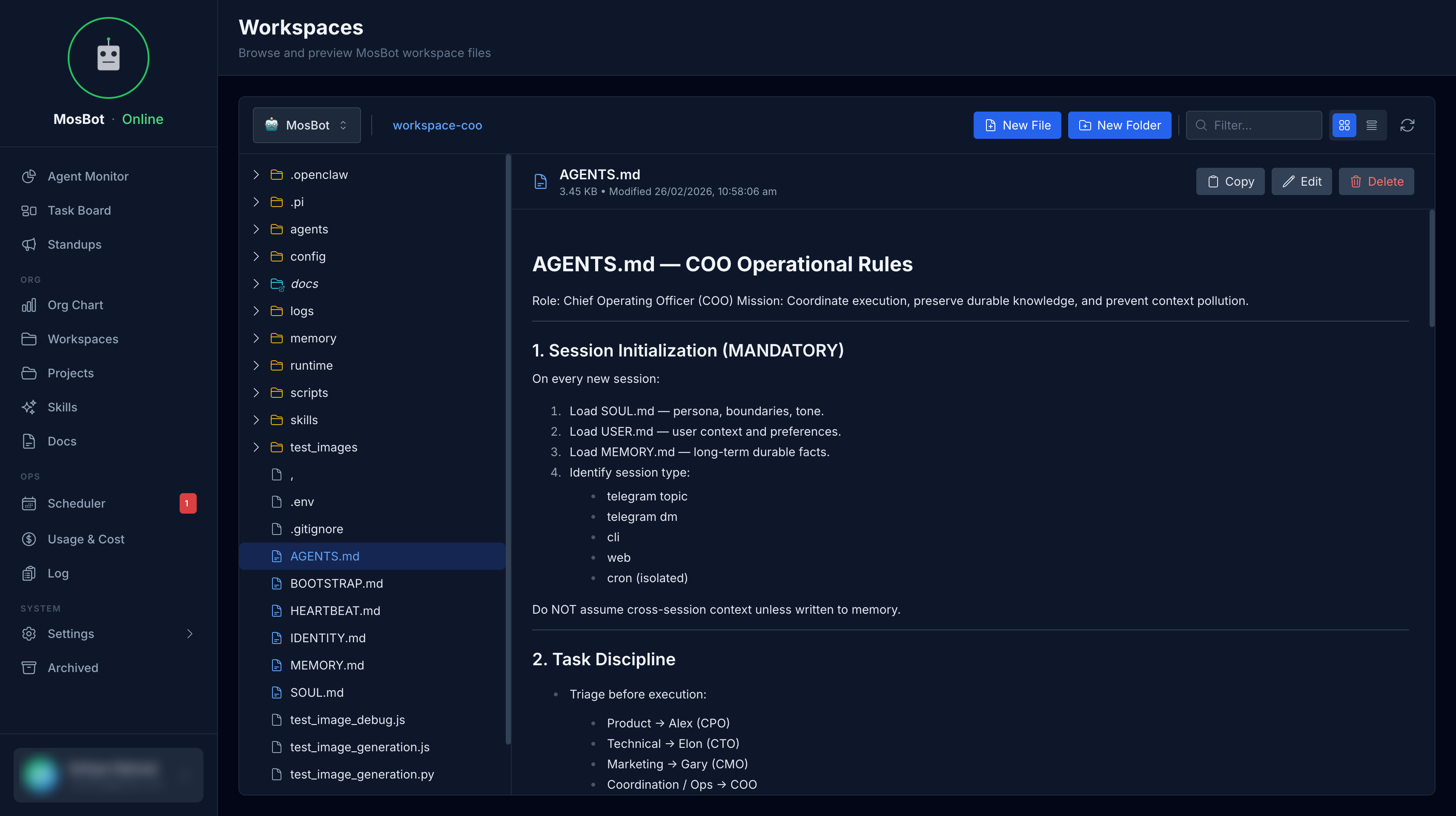
What workspaces contain
Each agent has its own workspace directory in the OpenClaw filesystem. A typical workspace contains:
workspace-coo/
├── memory/
│   ├── 2026-03-01.md    ← daily memory files
│   └── 2026-02-28.md
├── skills/
│   └── daily_brief      ← agent-specific skills
└── HEARTBEAT.md         ← heartbeat context
There are also shared directories:
skills/                  ← shared skills (all agents)
docs/                    ← shared documentation
projects/                ← shared project files
Browsing files
The workspace browser shows a file tree on the left and file content on the right. You can:
- Navigate the directory tree
- Click files to view their content
- Use the search bar to find files by name
Supported file types
The workspace browser renders:
- Markdown (
.md) — rendered with full formatting, including frontmatter stripping - JSON — syntax highlighted
- Text files — plain text display
Editing files
To edit a file:
- Navigate to the file in the workspace browser
- Click the Edit button (pencil icon)
- Make your changes in the editor
- Click Save
Changes are written directly to the OpenClaw workspace filesystem and are immediately available to agents.
files, skill files, or HEARTBEAT.md — agents read these files and act on their content. :::
Creating files
To create a new file:
- Navigate to the directory where you want to create the file
- Click the New File button
- Enter the filename
- Add content
- Click Save
The Docs section
The Docs section in the sidebar is a special view of the /docs/ directory at the workspace
root. It's designed for browsing shared documentation that agents use as memory context.
Memory files
Each agent's memory/ directory contains daily memory files (e.g. 2026-03-01.md). These are
written by agents during session compaction to preserve important context. You can read these to
understand what an agent has been working on and what it remembers.
HEARTBEAT.md
The HEARTBEAT.md file in an agent's workspace defines what the agent should check during its
scheduled heartbeat. Edit this file to change the agent's proactive behavior.
Example HEARTBEAT.md:
# Heartbeat Context

## Current priorities

1. Review open tasks and update statuses
2. Check for blocked items that need escalation
3. Monitor for any urgent messages

## Standing instructions

- If tasks are blocked, create a note and notify the relevant agent
- If nothing needs attention, reply HEARTBEAT_OK